
Tableau CRM: Add action buttons on Table without XMD

Tableau CRM: Add action buttons on Table without XMD

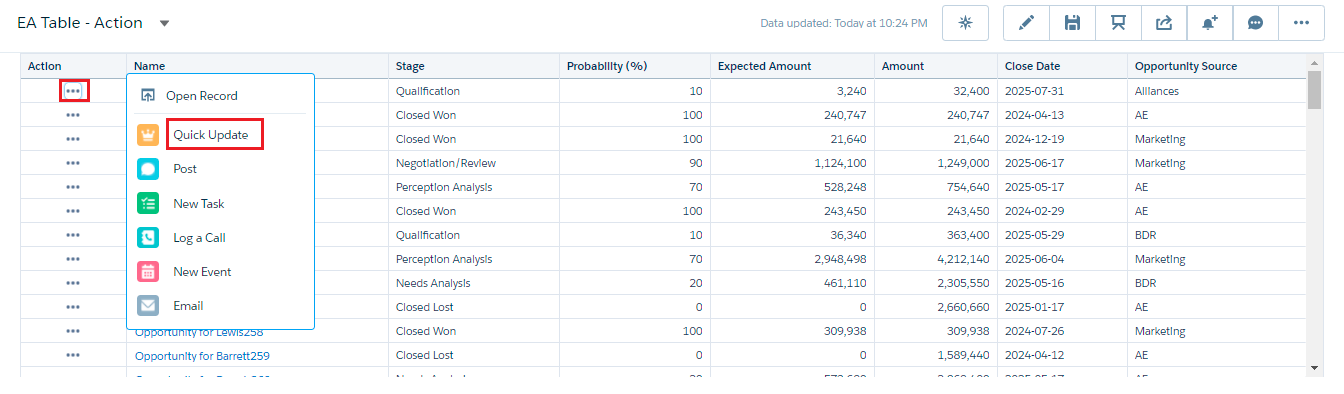
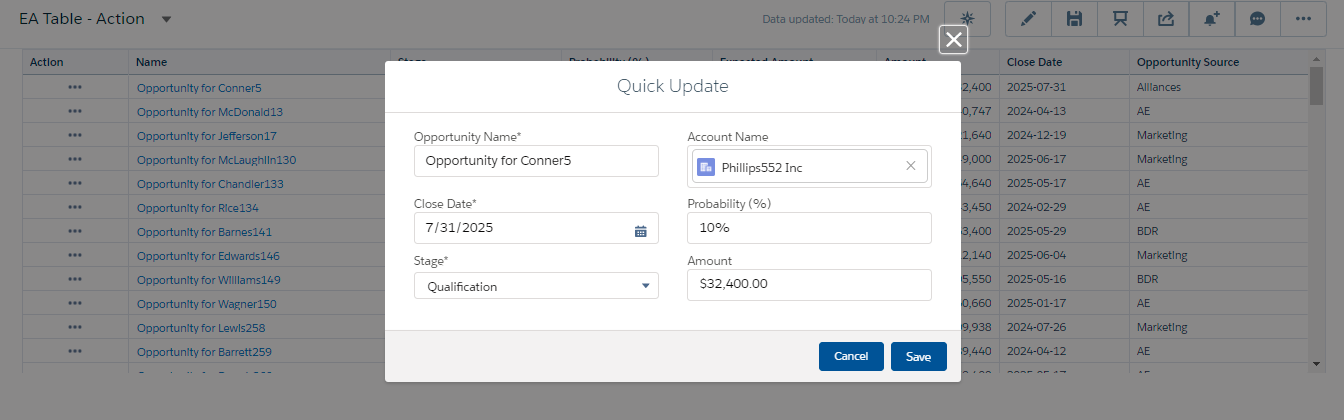
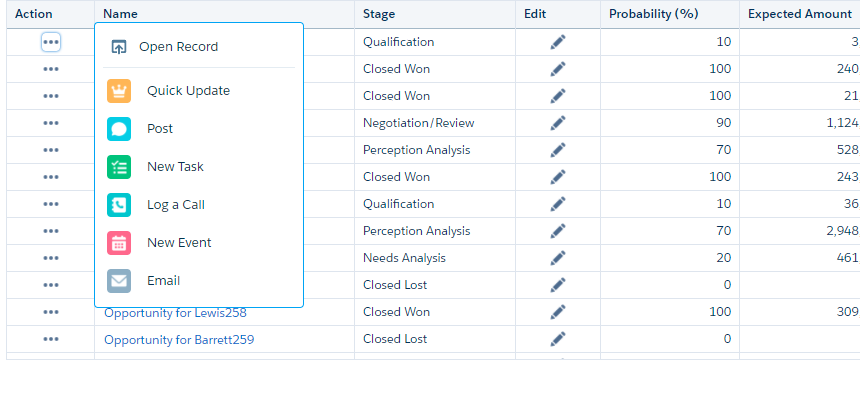
Adding actions to a row in Tableau CRM (formerly Einstein Analytics) table is the coolest feature of Winter ’21 release. In this blog we will create a table with action buttons as shown in the below image without editing the dataset XMD file.
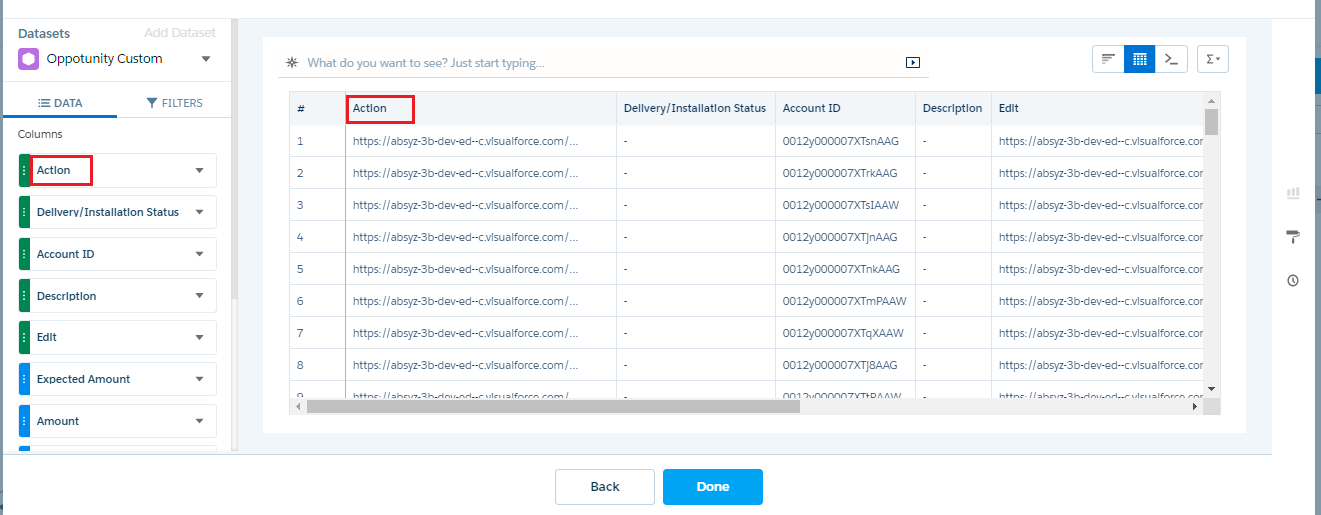
Add the column to the value table. Your computed text value will appear.
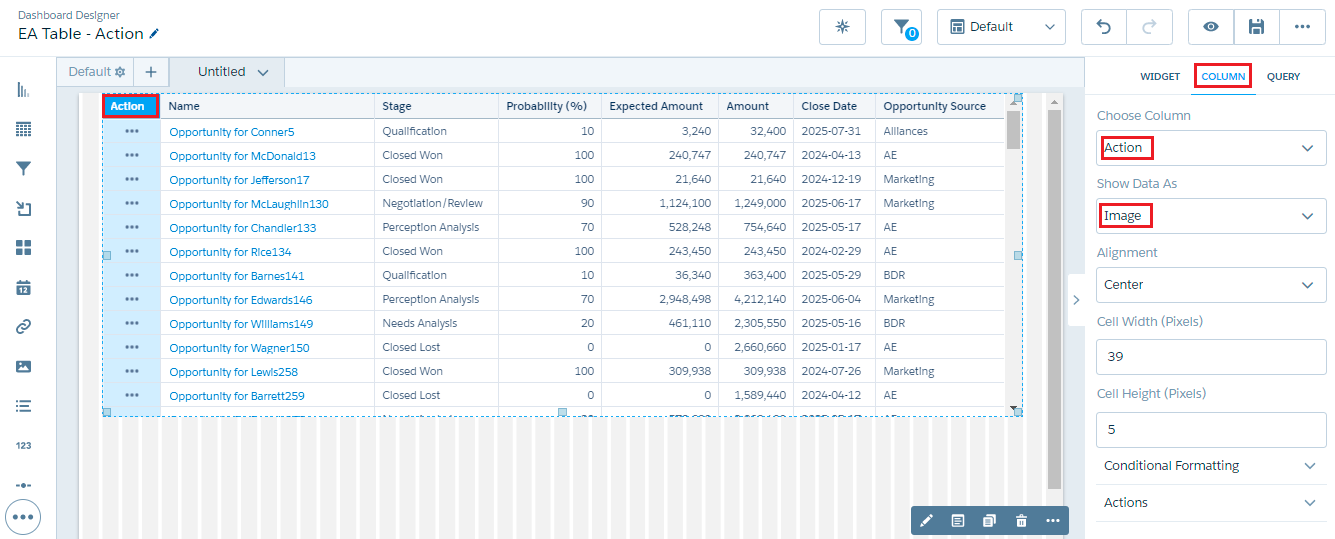
Select the column created. You can resize the image accordingly using cell stylings.

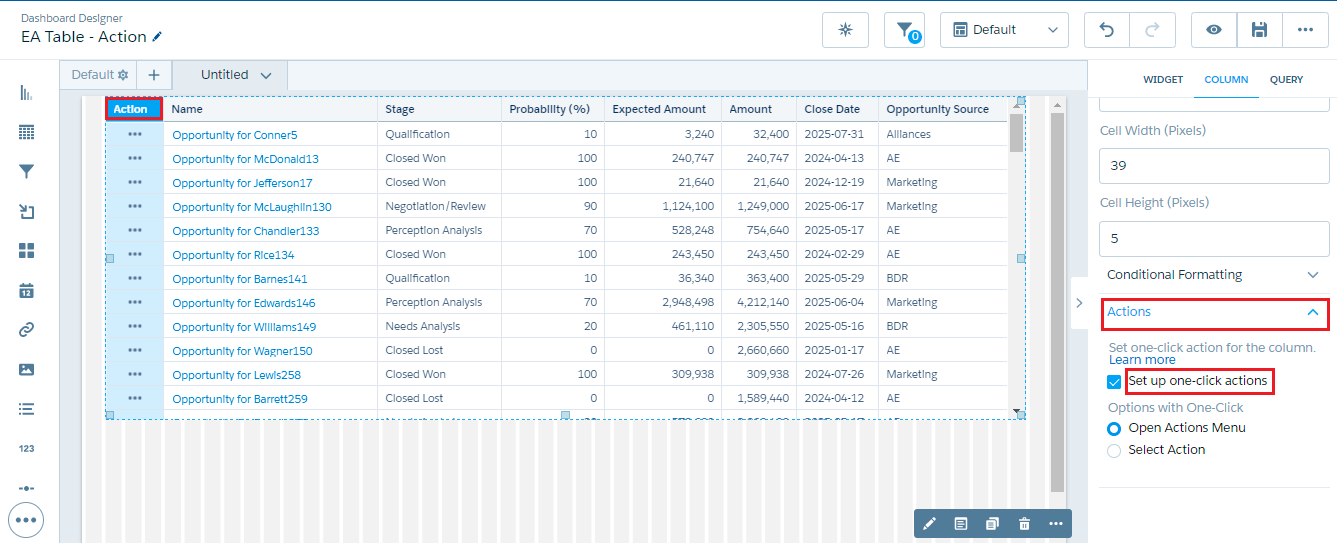
Select setup actions -> you can select multiple or single action

Save and preview your changes. Click on the Actions icon, you can see the menu as shown below. The quick action to update your record is ready.

Add the column to the value table. Your computed text value will appear.
Select the column created. You can resize the image accordingly using cell stylings.

Select setup actions -> you can select multiple or single action

Save and preview your changes. Click on the Actions icon, you can see the menu as shown below. The quick action to update your record is ready.

Add the column to the value table. Your computed text value will appear.
Select the column created. You can resize the image accordingly using cell stylings.

Select setup actions -> you can select multiple or single action

Save and preview your changes. Click on the Actions icon, you can see the menu as shown below. The quick action to update your record is ready.

Create a Value Table

Now the actions for the column is setup. Create a Value Table in your dashboard/lens and set the actions for the newly created column. Follow the steps below to setup.

Add the column to the value table. Your computed text value will appear.

Select the column created. You can resize the image accordingly using cell stylings.

Select setup actions -> you can select multiple or single action

Save and preview your changes. Click on the Actions icon, you can see the menu as shown below. The quick action to update your record is ready.

Create a Value Table

Now the actions for the column is setup. Create a Value Table in your dashboard/lens and set the actions for the newly created column. Follow the steps below to setup.

Add the column to the value table. Your computed text value will appear.
Select the column created. You can resize the image accordingly using cell stylings.

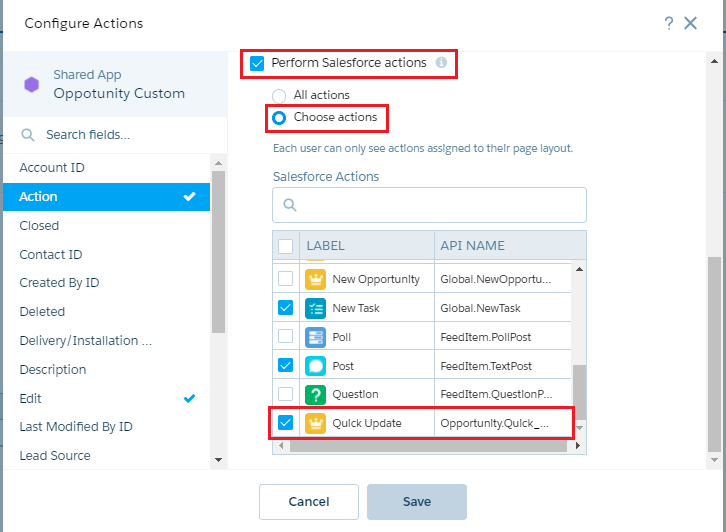
Select setup actions -> you can select multiple or single action

Save and preview your changes. Click on the Actions icon, you can see the menu as shown below. The quick action to update your record is ready.

Create a Value Table

Now the actions for the column is setup. Create a Value Table in your dashboard/lens and set the actions for the newly created column. Follow the steps below to setup.

Add the column to the value table. Your computed text value will appear.

Select the column created. You can resize the image accordingly using cell stylings.

Select setup actions -> you can select multiple or single action

Save and preview your changes. Click on the Actions icon, you can see the menu as shown below. The quick action to update your record is ready.

Enable Actions

Create a quick action in salesforce to update the record in the object needed eg., Opportunity and add it to the page layout. In Analytics tool select actions to the new columns added to the dataset as shown below.

Create a Value Table

Now the actions for the column is setup. Create a Value Table in your dashboard/lens and set the actions for the newly created column. Follow the steps below to setup.

Add the column to the value table. Your computed text value will appear.

Select the column created. You can resize the image accordingly using cell stylings.

Select setup actions -> you can select multiple or single action

Save and preview your changes. Click on the Actions icon, you can see the menu as shown below. The quick action to update your record is ready.

Enable Actions

Create a quick action in salesforce to update the record in the object needed eg., Opportunity and add it to the page layout. In Analytics tool select actions to the new columns added to the dataset as shown below.

Create a Value Table

Now the actions for the column is setup. Create a Value Table in your dashboard/lens and set the actions for the newly created column. Follow the steps below to setup.

Add the column to the value table. Your computed text value will appear.
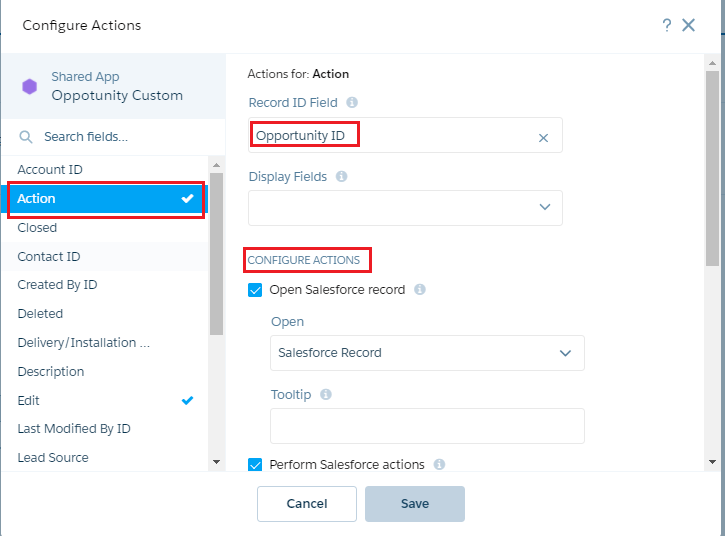
Select the column created. You can resize the image accordingly using cell stylings.

Select setup actions -> you can select multiple or single action

Save and preview your changes. Click on the Actions icon, you can see the menu as shown below. The quick action to update your record is ready.

Enable Actions

Create a quick action in salesforce to update the record in the object needed eg., Opportunity and add it to the page layout. In Analytics tool select actions to the new columns added to the dataset as shown below.

Create a Value Table

Now the actions for the column is setup. Create a Value Table in your dashboard/lens and set the actions for the newly created column. Follow the steps below to setup.

Add the column to the value table. Your computed text value will appear.
Select the column created. You can resize the image accordingly using cell stylings.

Select setup actions -> you can select multiple or single action

Save and preview your changes. Click on the Actions icon, you can see the menu as shown below. The quick action to update your record is ready.

In Dataflow: Add a computed field

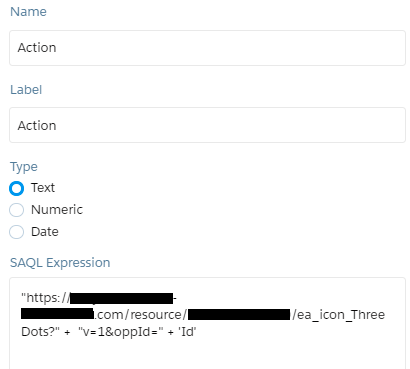
To add a compute field to the dataset, you can use Dataflow or Recipe. Here we are using a dataflow to add the custom computed field. Creating Action field in the compute expression node. Compute field contains concatenated string as: “[static resource URL]” + “v=1&[any variable name]=[Id]”. So the output for the dataset would be like: “[static resource URL]” + “v=1&oppId=006xx00000xxxxxxx0”.

Enable Actions

Create a quick action in salesforce to update the record in the object needed eg., Opportunity and add it to the page layout. In Analytics tool select actions to the new columns added to the dataset as shown below.

Create a Value Table

Now the actions for the column is setup. Create a Value Table in your dashboard/lens and set the actions for the newly created column. Follow the steps below to setup.

Add the column to the value table. Your computed text value will appear.
Select the column created. You can resize the image accordingly using cell stylings.

Select setup actions -> you can select multiple or single action

Save and preview your changes. Click on the Actions icon, you can see the menu as shown below. The quick action to update your record is ready.

Create an image URL

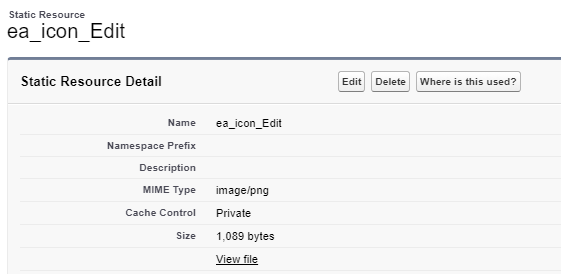
Upload the image you wanted show in the column to the static resource. In the above image we have used slds icons that is uploaded to the static resource. Once you have created the static resource you will find an option View file. Click on it to get the resource link that we will be using in the next step in place of URL (where ever mentioned).

In Dataflow: Add a computed field

To add a compute field to the dataset, you can use Dataflow or Recipe. Here we are using a dataflow to add the custom computed field. Creating Action field in the compute expression node. Compute field contains concatenated string as: “[static resource URL]” + “v=1&[any variable name]=[Id]”. So the output for the dataset would be like: “[static resource URL]” + “v=1&oppId=006xx00000xxxxxxx0”.

Enable Actions

Create a quick action in salesforce to update the record in the object needed eg., Opportunity and add it to the page layout. In Analytics tool select actions to the new columns added to the dataset as shown below.

Create a Value Table

Now the actions for the column is setup. Create a Value Table in your dashboard/lens and set the actions for the newly created column. Follow the steps below to setup.

Add the column to the value table. Your computed text value will appear.
Select the column created. You can resize the image accordingly using cell stylings.

Select setup actions -> you can select multiple or single action

Save and preview your changes. Click on the Actions icon, you can see the menu as shown below. The quick action to update your record is ready.

Leave a Comment

Your email address will not be published. Required fields are marked *

Recent Posts

US Health System: Salesforce Sales & Marketing Cloud
Streamlining Lead Management & Insurance Enrollment with Salesforce Sales Cloud + Marketing Cloud
The Real ROI of Salesforce AI
The Real ROI of Salesforce AI: Where Enterprises Actually See Returns in the First 6 Months
Agentforce Commerce: How AI Is Redefining the Future of Shopping
Agentforce Commerce: The Future of AI-Driven Shopping Is Here — And It’s About to Redefine How Brands Sell
Manufacturers Lead in Salesforce AI Adoption
Why US Midwest Manufacturers Are Adopting Salesforce AI Faster Than the Coasts
Salesforce eVerse Explained
Why Salesforce’s eVerse is a Game-Changer — and what it means when choosing your Salesforce Partner
Scroll to Top